Product
The tabs that ship.
Each block is a screen in the program. Shots are from a real .sdp, not a drawing of a drawing.
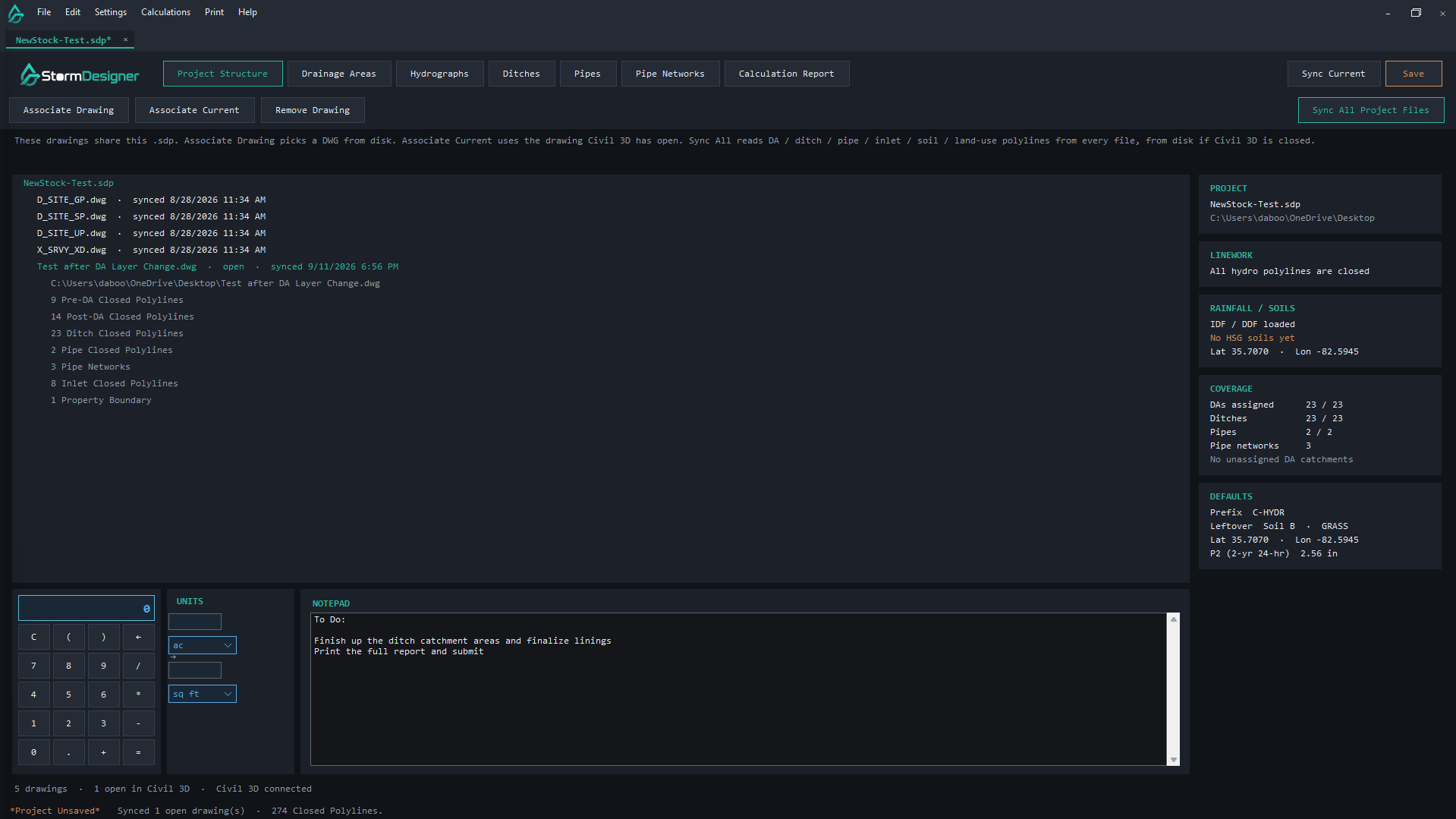
Project Structure
The home tab. Drawings, coverage, rainfall, and defaults live here. New projects land on this page.
- Associate Drawing picks a DWG from disk. Associate Current uses the drawing Civil 3D has open.
- Sync Current pulls the open drawing. Sync All Project Files reads listed files from disk.
- Load NOAA Atlas 14 IDF and DDF from lat / lon. Type coordinates when CAD is closed.
- Import soils from USDA SSURGO after the first Sync stores Soils-BND.
- Save writes Tc, overlays, defaults, rainfall, and cached rings into the .sdp.
Drainage Areas
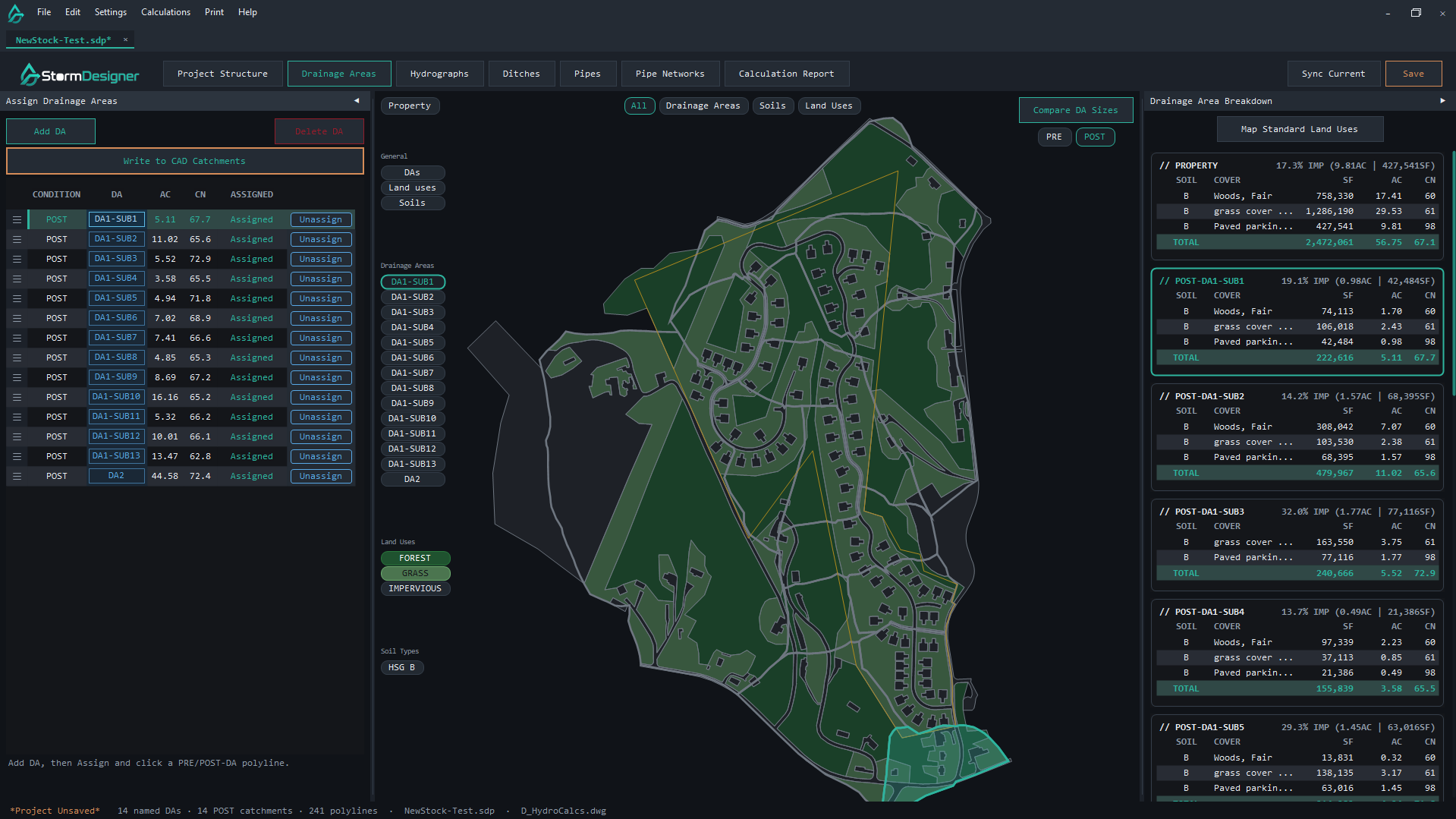
Closed PRE and POST polylines become cards. Soil times cover sets CN. You map land use. The program does not guess TR-55 covers on a new project.
- Assign / Unassign from the left palette. Double-click a card or polygon to edit.
- Composite CN, C, area, percent impervious, and Tc on each card.
- Compare DA Sizes for PRE vs POST totals.
- Write to CAD Catchments creates Civil 3D catchments on C-HYDR-CTCH.
- File → Export to HydroCAD writes a .hcp HydroCAD can open.
Hydrographs
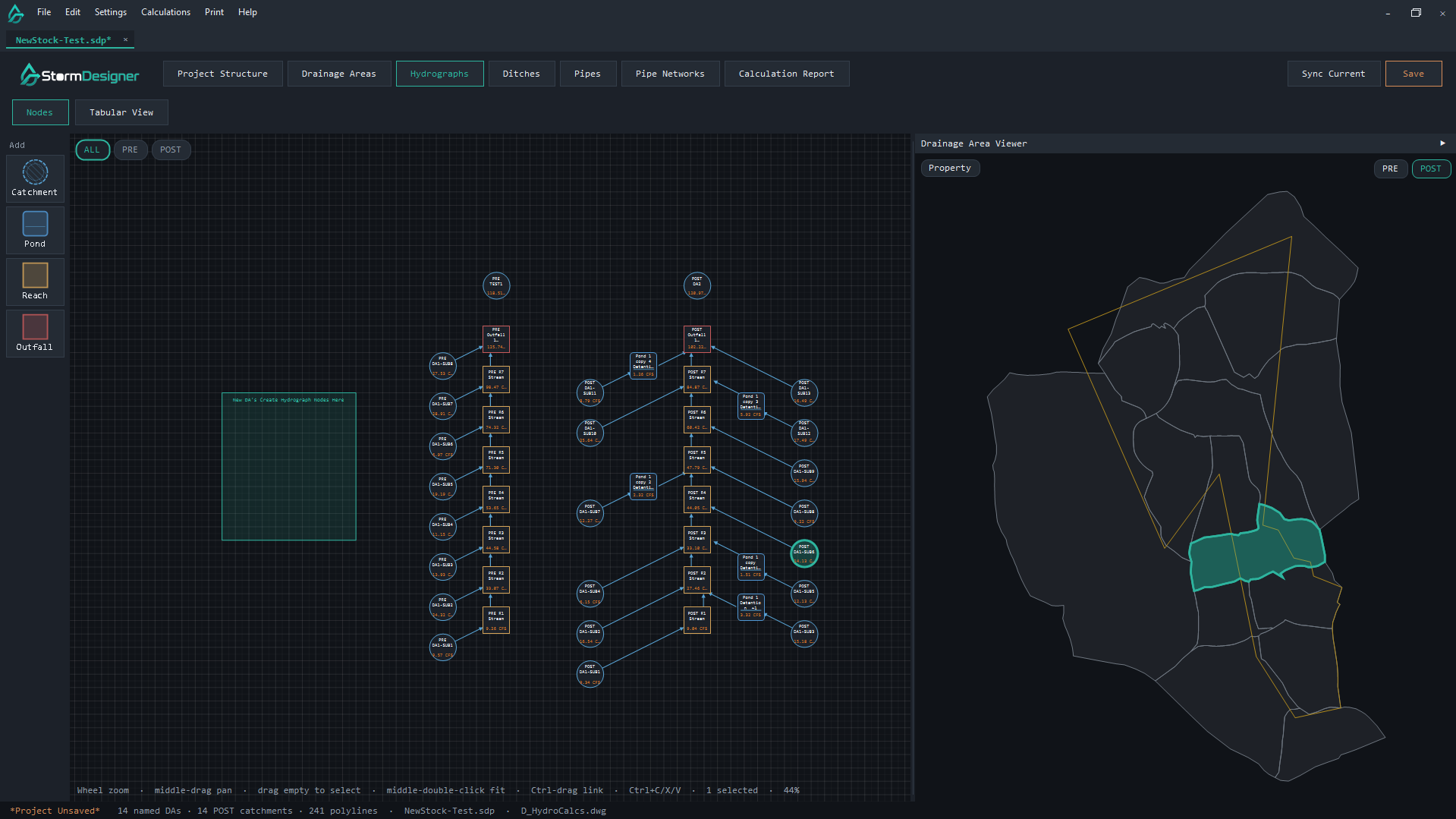
Place catchment, pond, reach, and outfall nodes. Link them. The Drainage Area Viewer sits on the right.
- Node diagram for the site. Reach Information has left and right side slopes.
- Pond editor starts on General: None, Catch Basin, or Detention Pond. None is Qin = Qout.
- Export to HydroCAD flips the diagram so DA stays at the bottom, writes min Tc 5 min, CN to 1 decimal.
- Full storm Run, pond routing tables, and StormTech layout are still being finished. See Coming soon.
Ditches
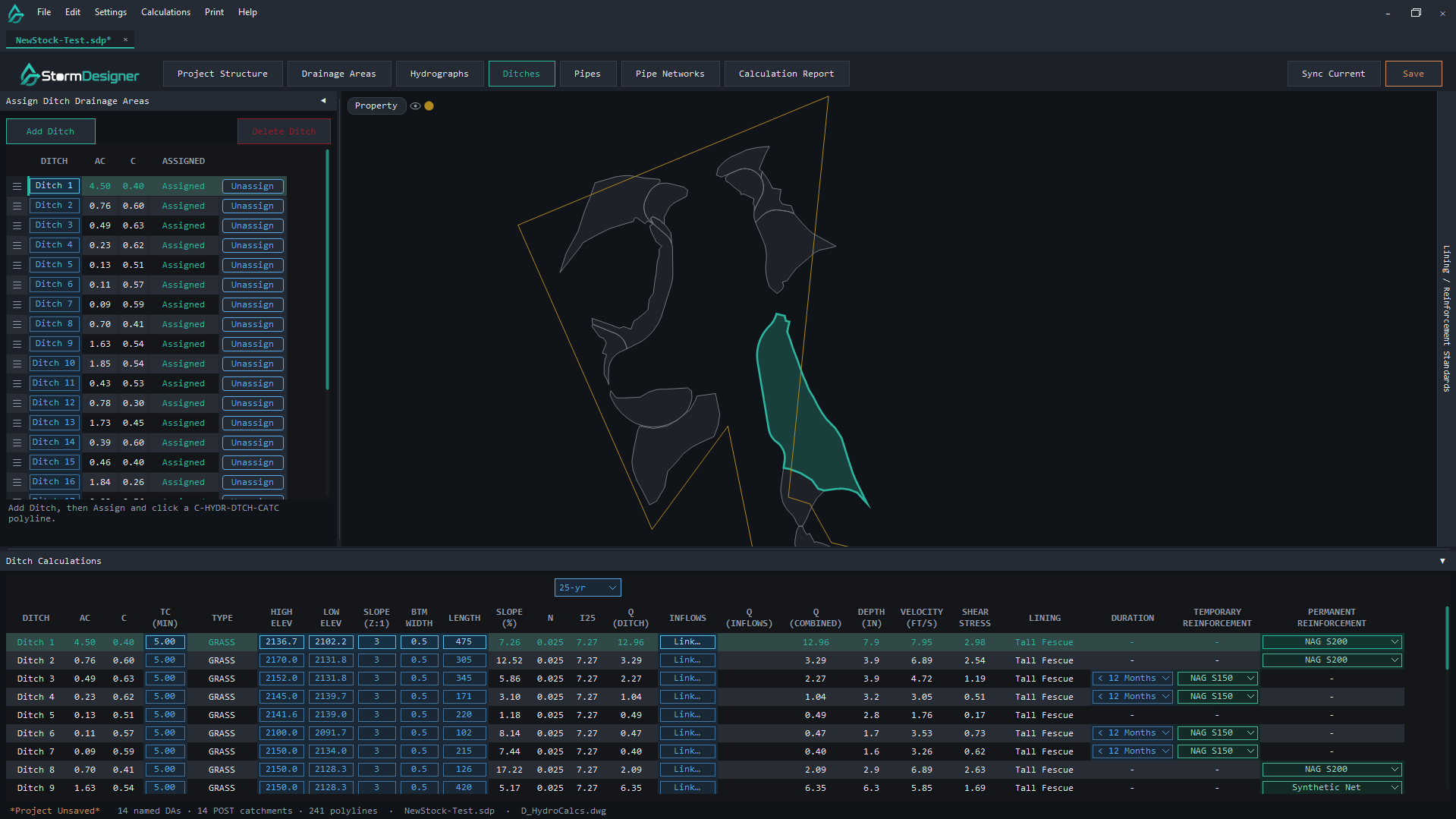
Manning section on the assigned drainage area. Lining and outlet protection when the numbers call for it.
- Bottom width, depth, left and right side slopes. The section sketch uses those wall angles.
- Assign ditch catchments from the left palette.
- Outlet protection reads Q, D, and V. View Graph uses the NCDOT chart.
- Low velocity skips outlet protection.
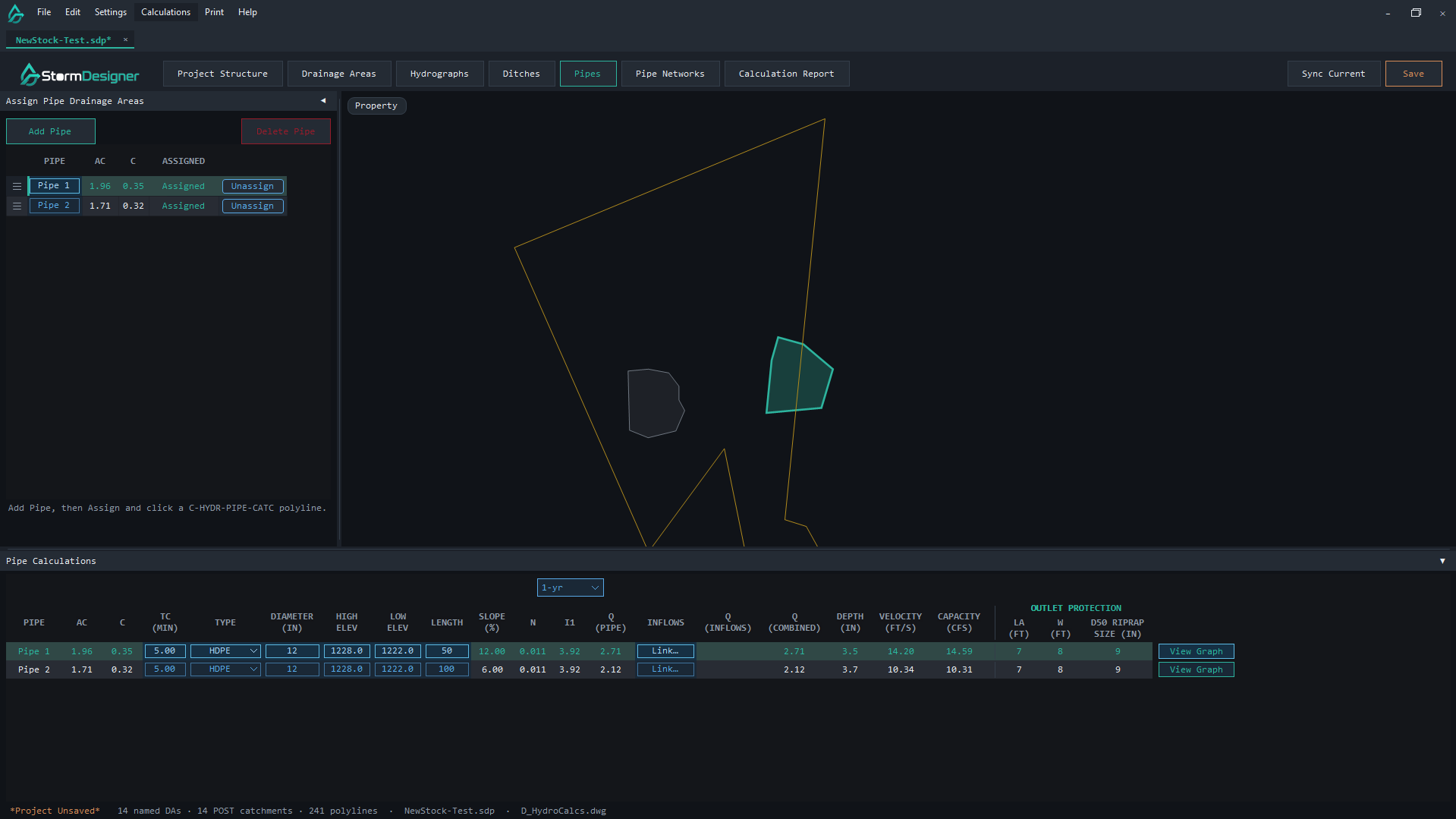
Pipes
Circular CIA plus Manning. Same assign flow as ditches.
- Storm dropdown above I (I2 / I10 / I25 / …). The table uses that intensity.
- After capacity: La, W, and d50.
- View Graph uses the same NCDOT chart as ditches.
- Low velocity skips outlet protection.
Pipe Networks
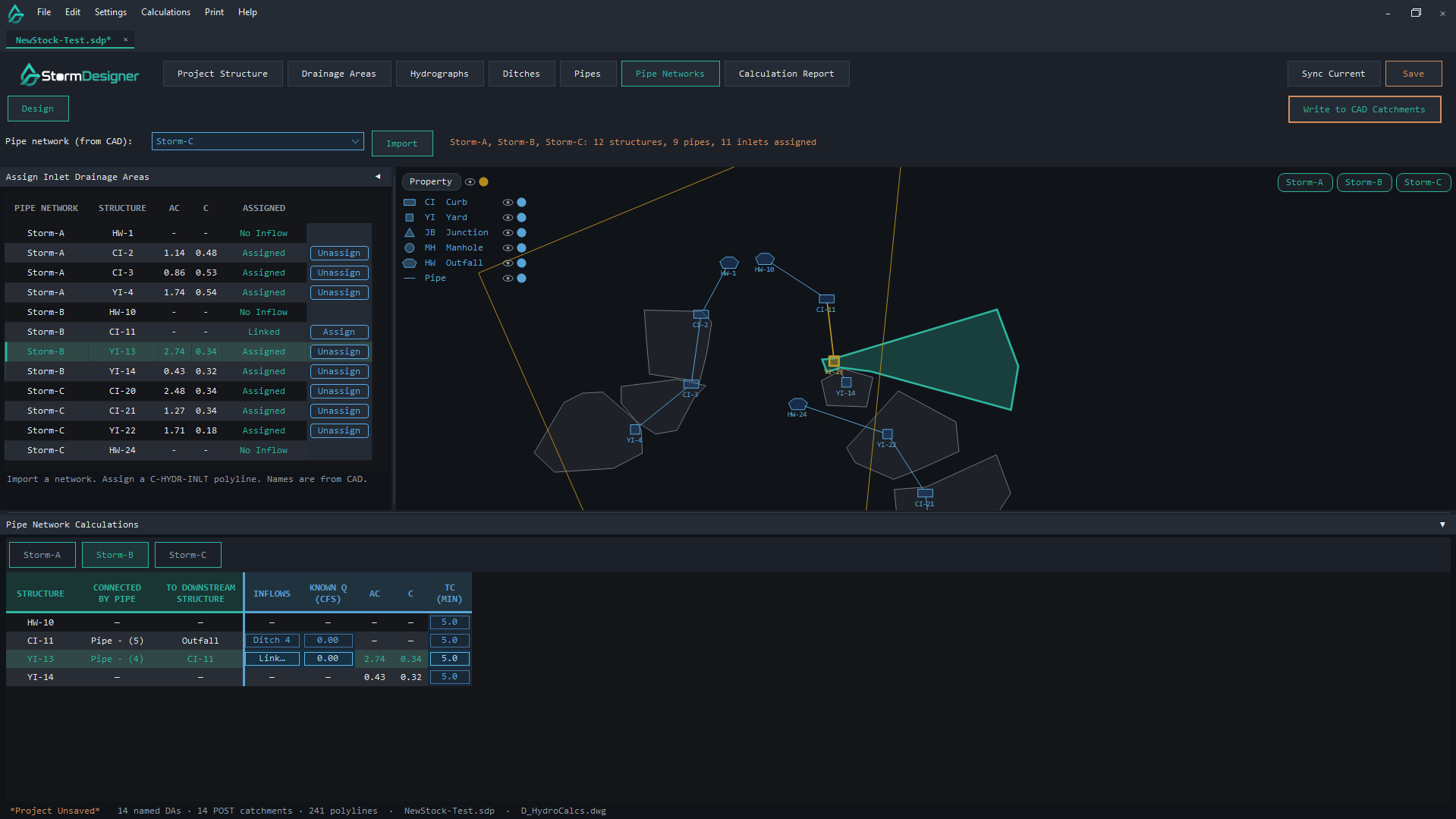
Pull Civil 3D pipe networks. Map inlet catchments. See structures on the plan.
- Structure types match Civil 3D: Grate Inlet, Curb Inlet, Combination, Outfall, Manhole.
- Assign Linked uses the same teal as Assigned. Clicking a structure highlights that network row.
- Write to CAD Catchments also updates the linked structure type.
- Full HGL / EGL Run, Results, and profile are still in process. See Coming soon.
Calculation Report
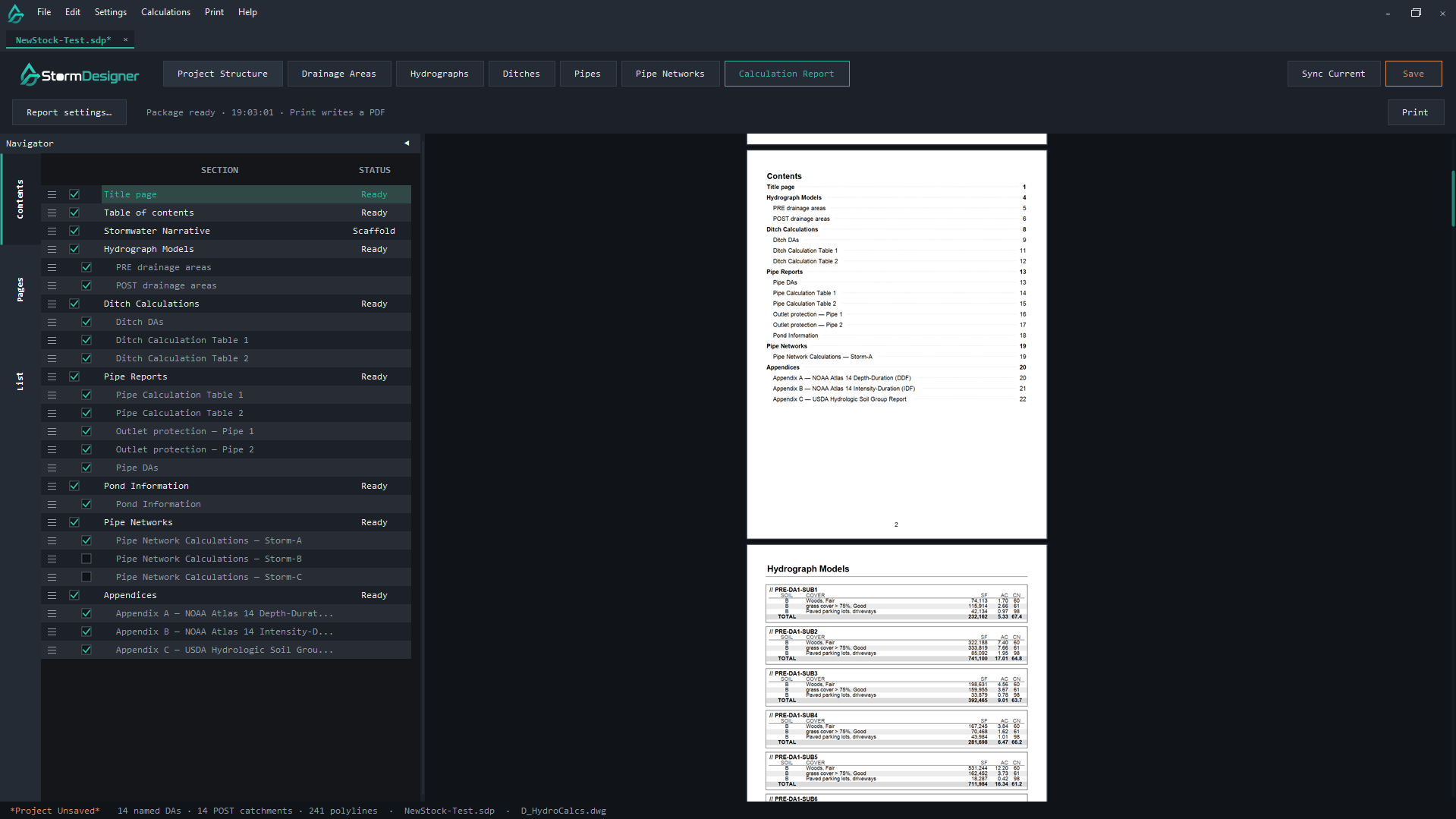
A book you can send. Contents you can reorder. The compiled package is one vector PDF stored inside the .sdp.
- The viewer rebuilds when you change order, Contents, or settings, and when you open the tab if the package is stale.
- Unchecked Contents rows stay in the list. They drop out of the printed book.
- Print writes the same pages the viewer shows.
- Legacy JPEG sidecar folders still load once. Save then stores the package in the .sdp.
Layer Tools
A Civil 3D palette. Command: SDLAYERS. StormDesigner itself is STORMDESIGNER. There is no SITEDRAIN alias.
- Move objects onto C-HYDR layers without hunting the layer drop-down.
- The palette lives in the plugin. The StormDesigner form stays in the exe.
- Copy StormDesigner.bundle into Autodesk ApplicationPlugins, restart Civil 3D, type the command.